

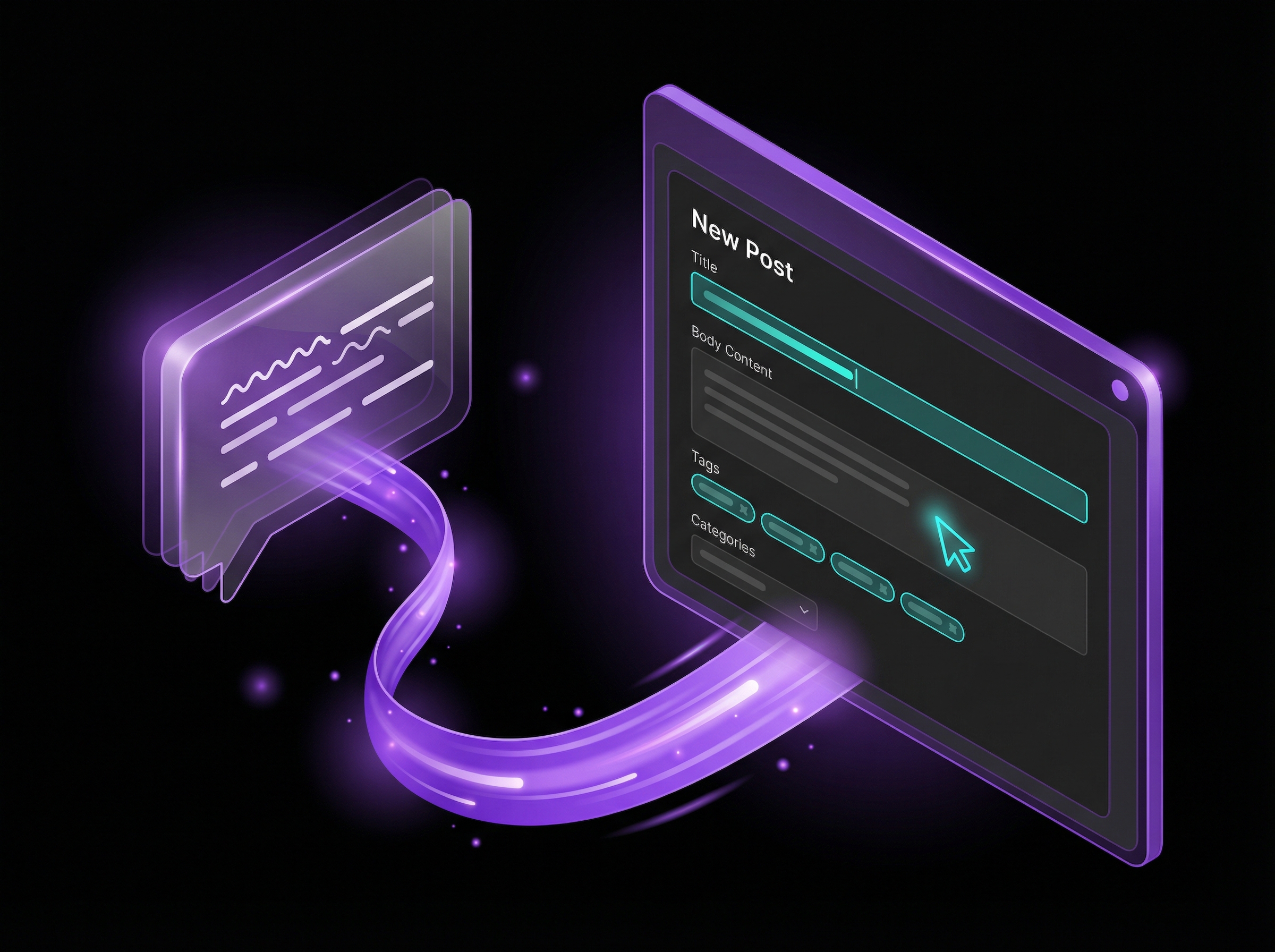
Webflow and Anthropic launched a partnership in February 2026 that lets Claude connect directly to your Webflow site. Claude can read your site structure, create CMS content, update pages, and push changes live.
I wanted to test whether I could turn this into a complete publishing system. No copying and pasting between tools. No manual CMS entry. Just a conversation that becomes a blog post sitting in my Webflow editor.
This is the story of how I built it. You are reading the final test.
What the Webflow Connector Actually Is
MCP stands for Model Context Protocol. It is the bridge that lets Claude talk to external tools. Webflow built an MCP server that exposes their API to Claude. When you connect them, Claude gains the ability to see your collections, read your pages, and write new content directly to your CMS.
The official announcement from Webflow covers bulk CMS updates, SEO audits, and design system consistency checks. Those capabilities are real. Marketers can create and update content without leaving their conversation. Developers can apply structural updates through a defined set of actions.
But I wanted something specific: take a topic or conversation thread, write a complete blog post in my brand voice, generate all the CMS metadata, and push it as a draft. Zero manual steps on my end except reviewing and clicking publish.
That required more than just connecting the tools.
Getting Claude to Talk to Webflow
I started with Anthropic's Cowork tool. Cowork is a desktop application that lets you connect Claude to local files and external services through MCP. It was my testing ground before moving to Claude Desktop.
The initial connection worked. Claude could see my site. It could list my CMS collections and read my pages. The data tools responded correctly.
Then I tried the Designer tools. These let Claude create page elements, apply styles, and build actual page structures. They failed. The connection dropped. Error messages were vague. I could read from Webflow but could not write to the visual editor.
I kept trying. Restarted connections. Checked configurations. Tried different commands. Waited a day and tried again.
After several sessions across multiple days, the Designer tools finally connected and stayed connected. I do not know exactly what fixed it. The connector may have been updated on Webflow's end. My configuration may have had a subtle issue. What I know is that persistence paid off.
If your first attempts fail, keep trying. This technology is new. Sometimes it takes a few runs to stabilize.
Once Cowork was solid, I moved to Claude Desktop. The same MCP connector works there. Now I have full Webflow access in the interface I use every day.
Writing the System Instructions
A connected Claude without instructions is a powerful tool with no direction. It can access your Webflow site, but it does not know your content strategy, your brand voice, your page structures, or your CMS field mappings.
I solved this by indexing every page on grantbot.co.
I pulled up every URL and categorized them by type. Blog posts. Landing pages. Product pages. Solution pages. Service pages. Partner pages. I documented the section patterns each type follows.
Blog posts go through the CMS with specific fields: title, slug, category, author, article body as rich text, summary for the grid card, meta description, featured image, and date.
Landing pages follow a section pattern: hero with pain point headline, problem cards with quantified costs, timeline showing the transformation phases, comparison table against alternatives, testimonials, and final CTA.
Product pages have their own branding separate from the main Grantbot identity. They include pricing tiers, feature walkthroughs with numbered steps, FAQs, and product-specific CTAs.
Solution pages lead with a dramatic stat, show a relevant testimonial, list three benefit cards, display technology logos, and cross-link to sibling solution pages.
I documented all of this. Then I added the concrete data Claude needs to actually execute.
The exact CMS collection ID for blog posts. The reference IDs for each category. The reference IDs for each author. The HTML tags the rich text field accepts. The field slugs that map to each piece of content.
Claude needs specifics. Telling it to use the blog collection is not enough. It needs the ID, the field names, and the data types.
I also added my voice guidelines. Sentences average 10 to 20 words. Active voice. No semicolons. No em dashes. A banned words list that eliminates corporate jargon. Lead with numbers. Quantify every benefit.
The system instructions became a reference manual for my entire site.
Building the Blog Publisher Skill
System instructions tell Claude about my site. A skill tells Claude what to do.
Skills are reusable instruction sets that Claude loads when triggered by specific phrases. When I say turn this into a blog post or write a blog post about X, the skill activates and runs a defined workflow.
My blog publisher skill has five phases.
Phase 1: Extract the raw material. Is this a conversation thread to distill? A topic brief to write from scratch? A markdown draft to reshape? The skill handles all three.
Phase 2: Write the post. 800 to 2,000 words. H2 subheadings every 200 to 300 words. Internal links to relevant solution and product pages. A CTA paragraph at the end directing readers to book a strategy call.
Phase 3: Generate CMS metadata. Title, slug, summary excerpt, meta description with target keyword, category reference ID, author reference ID, alt text for the featured image, date in ISO format.
Phase 4: Present for approval. The skill shows me the complete draft with all metadata before anything touches Webflow. I review the content and say go or request changes.
Phase 5: Push to CMS. Claude creates the item as a draft in my Blog Posts collection. Never publishes directly. I get a confirmation with the CMS item ID and the expected live URL once published.
The skill also includes decision heuristics. If the post is under 800 words, Claude flags it because short posts underperform on SEO. If the category is unclear, it defaults to Process Automation. If no featured image is provided, it notes that as a manual step after draft creation.
The skill is about 400 lines. It took several iterations to get right. Each failed test revealed a gap: a missing field mapping, an unclear instruction, an edge case the workflow did not handle.
This Blog Post Is the Proof
You are reading the output of this system.
I gave Claude a topic outline with seven points I wanted to cover. Claude wrote the draft following my voice guidelines. I reviewed it and requested a revision to add more value. Claude rewrote it with a new structure. I approved.
Claude pushed the draft to my Webflow CMS. I added the featured image and clicked publish.
The conversation became the content. The content went straight to the CMS. No copying between tools. No reformatting from a Google Doc. No manual entry of metadata fields.
This is what workflow automation looks like when AI connects to your actual systems.
What the Prompts Alone Cannot Do
I am about to give you 15 prompts you can use with the Webflow connector today. They work. You will get real results from them.
But prompts have limits.
Programmatic pages for GEO. If you want to create 500 location pages or industry-specific landing pages that rank for long-tail keywords, you need templating logic, dynamic data sources, and a build process. The connector does not handle that out of the box.
Perfect component libraries. Claude can create elements, but it does not know your design system. It does not know your button classes, your section max-widths, or your type scale. That knowledge lives in custom instructions.
Consistent brand voice at scale. A prompt can suggest a tone. A system enforces it. When you publish weekly or daily, you need guardrails that catch drift before content goes live.
Cross-platform orchestration. The Webflow connector is one piece. If you want blog posts to trigger social media content, email sequences, and CRM updates, you need automation across multiple systems.
The prompts below will get you started. The system makes it repeatable.
15 Prompts You Can Use Today
These are the prompts I actually use or have tested with the Webflow connector. Copy them. Modify them for your site. See what works.
Creating Content
Write a blog post from a topic:
Write a blog post about [TOPIC] for my Webflow site. Target keyword: [KEYWORD]. Word count: 1,200-1,500 words. Structure it with H2 subheadings every 200-300 words. End with a CTA directing readers to [CTA URL]. Create it as a draft in my Blog Posts collection.
Turn a conversation into a blog post:
Turn our conversation above into a blog post. Extract the key insights and frameworks we discussed. Remove the back-and-forth. Keep only the substance that would help [TARGET AUDIENCE]. Create it as a draft in my Blog Posts collection with an SEO-optimized title and meta description.
Rewrite an existing post:
Pull the blog post at [URL]. Rewrite it to improve the hook in the first paragraph, add more specific numbers and examples, and strengthen the CTA. Show me the revised version before updating the CMS item.
Auditing Your Site
Full site SEO audit:
Audit my Webflow site for SEO issues. Check every page for missing or duplicate meta titles, missing or too-long meta descriptions, pages without H1 tags, and images missing alt text. Give me a prioritized list of fixes with the specific pages affected.
Content gap analysis:
List all my blog posts and their topics. Identify gaps where I should have content but do not. Compare against these keyword themes: [THEME 1], [THEME 2], [THEME 3]. Recommend 5 new blog post topics that would fill the biggest gaps.
Audit a single page:
Audit [PAGE URL] for SEO (title, description, headings, keyword usage), readability (sentence length, paragraph length), and conversion (CTA clarity, value proposition). Give me specific rewrites for anything that needs improvement.
Site Structure and Maintenance
Map my site structure:
List every page on my Webflow site organized by top-level pages, pages in folders, and CMS collection pages. Show me the hierarchy as a tree. Flag any orphan pages with no internal links pointing to them.
Analyze internal linking:
For these pages: [LIST URLS]. Show me how many internal links point to each one and which pages link to them. Identify opportunities to add more internal links from relevant content.
Document my CMS collections:
List all CMS collections on my site. For each one, show me the collection name and ID, all fields with their types, and number of items. Format this as documentation I can reference later.
Bulk Updates
Update CTAs across posts:
Find every blog post that mentions [OLD CTA TEXT]. Update each one to say [NEW CTA TEXT] instead. Show me which posts you will update before making changes.
Standardize formatting:
Scan all blog posts for paragraphs over 100 words that should be split, H2s that should be H3s based on hierarchy, and missing line breaks between sections. Give me a report grouped by issue type with specific posts listed.
Validate collection data:
Check my [COLLECTION NAME] collection for data quality issues: required fields that are empty, items with duplicate slugs, and inconsistent formatting in [FIELD NAME]. List the items that need attention.
Design System Checks
Audit CSS classes:
List all CSS classes on my site. Identify classes that are defined but never used and classes with similar names that might be duplicates. Group them by potential cleanup action.
Check style consistency:
Scan my site for style inconsistencies: buttons with different padding or colors, headings with inconsistent font sizes, and sections with non-standard spacing. Compare against what appears to be the intended design system.
Planning
Create a content calendar:
Based on my existing blog posts and my focus on [BUSINESS AREA], create a 3-month content calendar. For each week, suggest a topic and target keyword, which existing pages to link to, and estimated word count. Format as a table.
Want the Full System?
These prompts will get you started. You can copy them today and see real results from the Webflow connector.
If you want help building Claude into a complete workflow, we can show you how. The custom instructions that know your site structure. The skill files that enforce your brand voice. The component libraries that maintain design consistency. The cross-platform automations that connect content publishing to your CRM, email, and social systems.
We build AI into infrastructure, not just conversations.
Book a strategy call and we will map out what Claude can do for your operations.


